

**NEW** How do I make a suggestion / request a change to a document on G-HESS?
We’re always looking to improve the documents held on G-HESS so they accurately represent the tasks that we undertake. Please click here to access the quick reference guide to help you in making a suggestion.
How do I log in?
Click or copy and paste the following URL: https://cclho01.carnival.com/HESS/ghess.nsf/Home.xsp
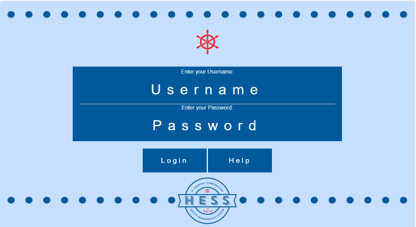
This will take you to the following screen, enter your username and password and click ‘Login’. If you have forgotten your username and/or password, please contact Jules Robinson in the PMO via pmo@carnivalshipbuilding.com
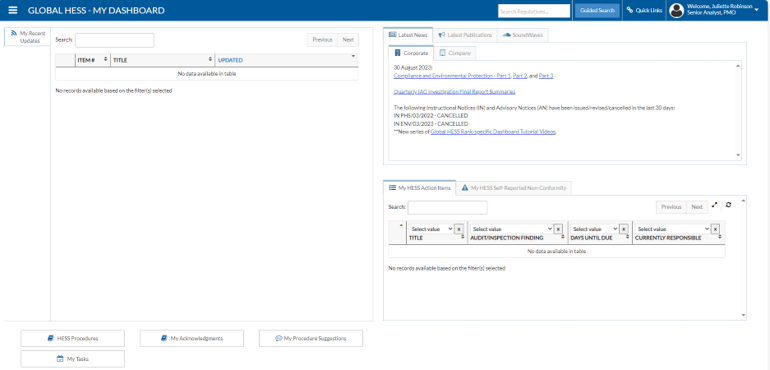
The landing page (called Global HESS – My Dashboard) will look as follows:
Where do I find CCS Documents?
To view the area that houses the Carnival Corporate Shipbuilding documents, click on the menu on the top left of the screen to expand it.

The dashboard will show as follows:
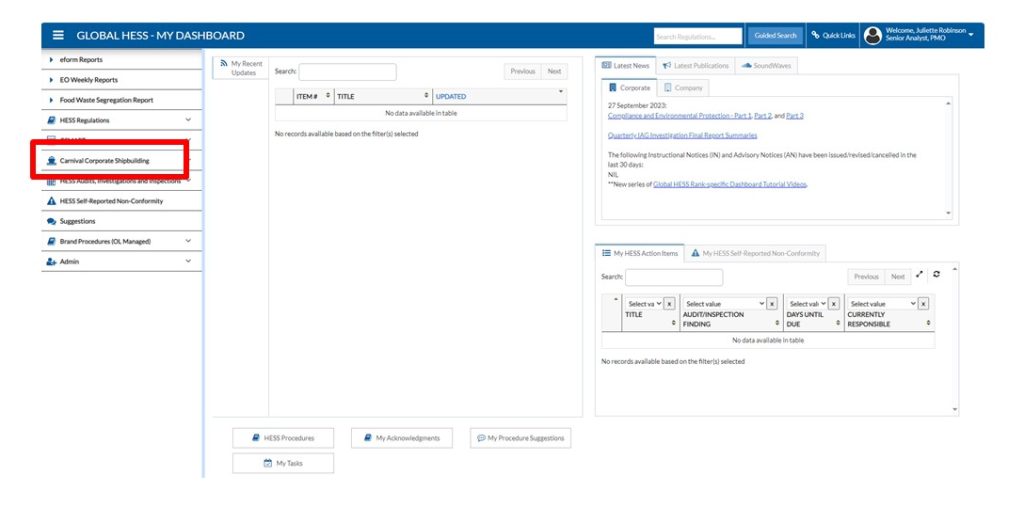 Click on Carnival Corporate Shipbuilding, the menu will expand to show the following:
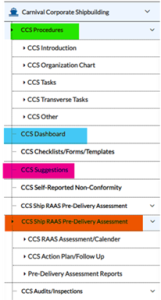
CCS PROCEDURES:
- CCS Introduction – this gives a quick introduction to what and who Corporate Shipbuilding (CCS) is and where we fit within the corporation. It also includes a short history of Carnival Corporation & PLC.
- CCS Organization Chart – this has the link to the Insider page which houses the latest version of the CCS organisation chart
- CCS Tasks – this is where most of the CCS task documentation and templates are housed (12 steps / 119 Tasks). There are some documents that in the process of being created/updated, they will be added as soon as they are completed. Here is a list of helpful acronyms that you will come across:
- TS – Task Summary (One Pager)
- TFD – Task Full Definition
- TMP – Template
- FD – Flow Diagram
- SD – Supporting Documentation – including Appendices / Annexes
- CCS Transverse Tasks – this is where the project management documentation is housed.
- C1-C4 – Steps 1-5 (Pre-contract / contract phases – in progress)
- P1-P6 – Steps 6-11 (design, construction, commissioning, delivery phases)
- CCS Other – This is where, in the future, any other policies / processes / procedures will be housed – i.e.: Data Retention, Travel & Expenses, etc.
CCS DASHBOARD:
This is where you will find the dashboard that tracks compliance of new builds against the Corporate Standards, this will be updated every four months.
CCS SUGGESTIONS:
This is where the list of documents / template improvement / change requests will be recorded and tracked.
CCS SHIP RAAS PRE-DELIVERY ASSESSMENT:
- CCS RAAS Assessment Calendar – this is where you will find the calendar for assessments, this is updated every four months.
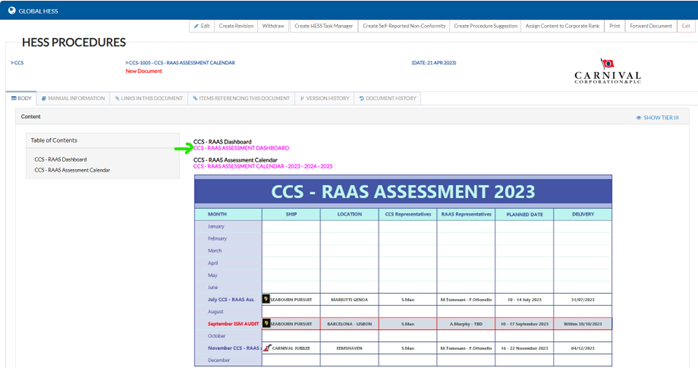
How do I open documents?
Select the step that the task falls under (eg. 1.01 Develop Business case Requirement)
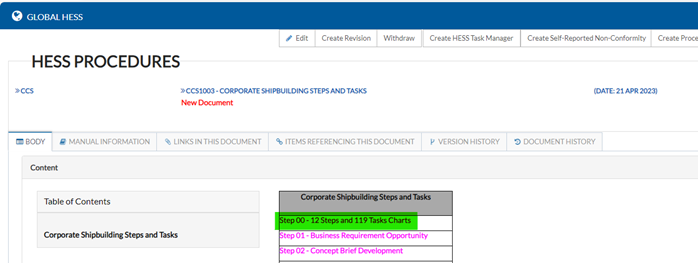
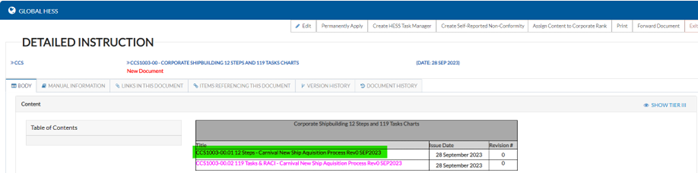
Click on the task document that you wish to open.
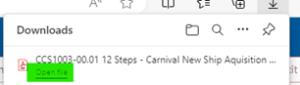
This will download the document for you to open.
Please note that the CCS Introduction document is visible without having to download. Within this document there are links to The Insider and other documents. These links are highlighted and underlined in Magenta.
How do I search for a Document / Template?
There are a couple of different ways that you can search within G-HESS.
OPTION 1
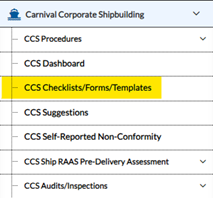
Click CCS Checklists/Forms/Templates
Select Value (Currently only Document)
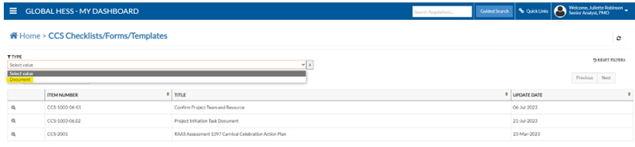
A list of all CCS documents will then show. You can filter this search if you know exactly what you are searching for by either the naming convention number (Item Number) or the title of task document. e.g.: CCS1003-01.01TS / Develop Business Case Requirements
OPTION 2
From the landing page / dashboard – In the Search Regulations box highlight in yellow below, you can type in the key word or part of the naming convention number (Item Number)
List of ALL Documents will be displayed.
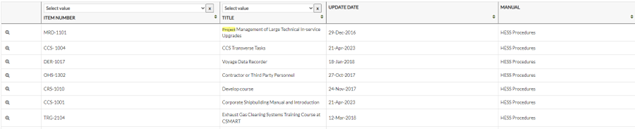
You can then filter the search results further by either using ‘SECTION’ or ‘MANUAL’ (below Manual section is Attachments)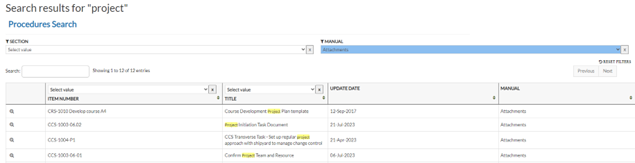
OR by using ‘Select Value’ on either of the Item Number or Title columns.
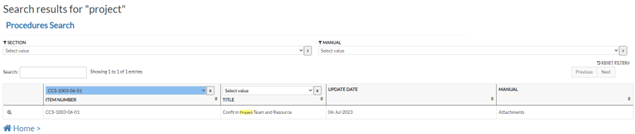
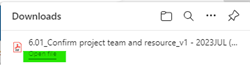
To open a document, click on the magnifying glass and then click on the document link, this will download the document for you to open.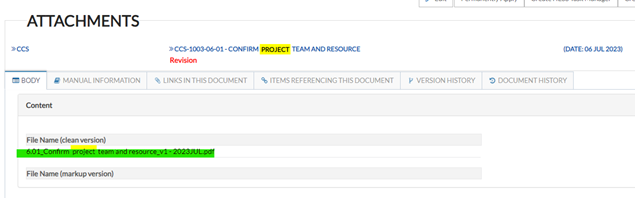
I’ve forgotten my login credentials / password – what do I do?
Please email Jules Robinson / PMO – PMO@carnivalshipbuilding.com
What do I do if something doesn’t work?
Please contact Jules Robinson in PMO (PMO@carnivalshipbuilding.com), in your message, please include the location (Marghera, Papenburg, etc) that you are working from and the problem that you are experiencing. i.e.: URL doesn’t work / Carnival Corporate Shipbuilding doesn’t show in the menu / Login details not working / etc.
Who do I contact if I have any queries / concerns?
In the first instance, please contact Jules Robinson, PMO (PMO@carnivalshipbuilding.com)