
 Zoom is a cloud based online service that allows you to hold audio and video conference calls with many people quickly and easily. It makes collaborating with colleagues when you’re working remotely easy! You can access it anywhere, from any device at any time.
We’ve created a user guide to help get you started.
There are two types of licences available for Zoom, Zoom Standard offers an unlimited number of meetings at a length of 40 minutes and is available to everyone.
Zoom Pro offers more advanced features including unlimited call times and meeting delegation. This will need to be requested via an IT service request.
Accessing Zoom from your laptop
To access Zoom from your laptop – open Chrome and go to this link https://carnivalukgroup.okta.com
or click the ‘My Digital Tools’ bookmark on your Internet Explorer for quick access.
Zoom is part of your digital tools – you can also access it from the portal at this link or from the ‘My Tools’ page on The Insider here.
Carnival House Shoreside, Hamburg and Mumbai colleagues log in using your primary email address and Windows password.
Fleet SMT colleagues please login with your role’s email address and Windows password.
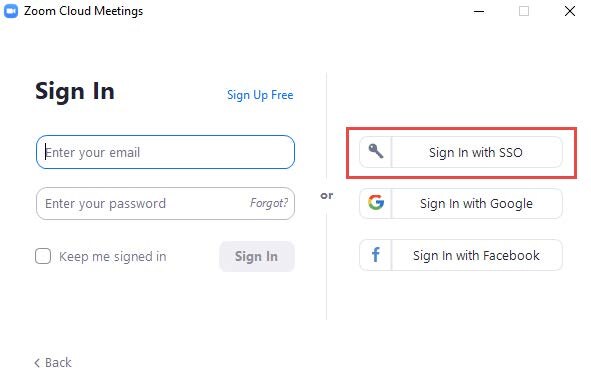
Top tip
- You don’t need to be connected to VPN to have a Zoom call. If you disconnect from the VPN that helps with traffic.Download the Zoom app to your mobile device, and upon logging in ensure you select the SSO option (single-sign on).
Accessing Zoom from your mobile device
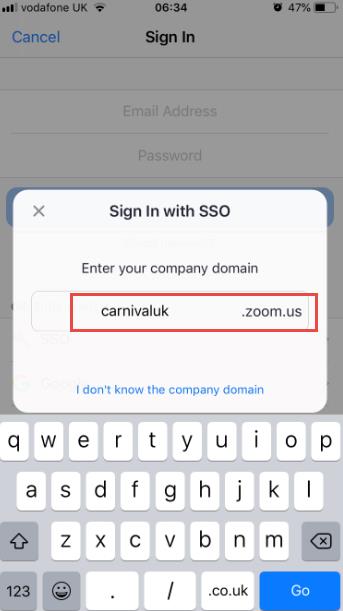 Login with your Windows login and password.
Your username for the app will be your primary email address and Windows password. For example Joe.bloggs@Carnivalukgroup.com followed by your Windows password.
If you’re prompted to add a company domain enter carnivaluk.
Accessing Zoom if you already have an account
If you are already using Zoom independently, you should have received an e-mail from Zoom asking you to merge onto a Carnival UK account. If you are using the Zoom Free version, you will be allocated a Carnival UK Zoom Standard account, whereas if you’re currently paying for your license, you’ll have the opportunity to request a Zoom Pro license by raising an IT Service Request.
Tips to secure your Zoom meetings
Never post Zoom meeting IDs on any public website (especially in Indico and DocDB) unless you set a password to protect the meeting or disable the join before host. Never post the Zoom meeting password on any public website.
Use a meeting password: You can set the default for all meetings to require passwords on Personal Meeting IDs, instant meetings, scheduling new meetings, joining via a link, and/or joining by phone. The account holder may override their default settings for any particular meeting. For instructions on how to set a password to protect your meeting. Find out how here
Use the waiting room feature to control access to the meeting, especially if the meeting is sensitive. This will prevent uninvited guests from joining your meeting. Click here to learn how to set up a waiting room.
Don’t attempt to install third-party Zoom plug ins or software without support from the IT team.
Disable the join before host function. Find out how here
Enable waiting room. This prevents attendees from joining a meeting until a host admits them individually from the waiting room. Find out how here
Lock the meeting down once all participants are on. Find out how here
Mute all participants and do not allow them to unmute themselves. (This option is available for the host/co-host during a meeting). Find out how here
Accessing Zoom calls
There are 3 ways to join a Zoom call:
- By clicking on the main link and it will take you straight to the meeting.
- By dialling the phone number provided and joining via your mobile phone.
- If you don’t have the Zoom App – or if you are sending a Zoom invite to operating companies that do not use Zoom – access to the meeting can be gained using the browser link at the bottom of the meeting invite.
There is a Zoom App which is available for you to download to your mobile device making it easier to connect.
Instant Zoom Meetings
From September Zoom will require that all instant meetings (where you share your personal ID to start a meeting straight away) have a ‘Passcode’ or a ‘Waiting Room’ enabled in order for people to join you on your Zoom calls.
Zoom are re-naming ‘Passwords’ with ‘Passcodes’ to better align with its role of allowing people in a meeting.
Please see these work instructions to learn how to create/update a passcode and/or waiting room to your instant meetings.
Helpful videos
To ensure that we provide the proper training, tools, and support to help you understand your own account features and how best to use the platform, Zoom team are offering training sessions and tutorials, as well as free interactive daily webinars to users.
- Trainings and tutorial webinars
- Live daily demos
- Upcoming webinars
- Video trainings
- Webinar sign-ups for various platform trainings
- Carnival UK Zoom Training Video
You can find LIVE training sessions that are hosted by Zoom Professional trainers below:
Zoom functionality quick links
- How to manage chat messages
- How to export chat messages
- How to use chat channels (Group chats) – for Laptop/PC
- How to use chat channels (Group Chats) – for IOS Phones (Also scroll up to see Accessing Zoom from your mobile device)
- How to use chat channel (Group chats) – for Android phones (Also scroll up to see Accessing Zoom from your mobile device)
- How to turn on a ‘blur’ background
- How to enable closed captioning (subtitles)
- Poll
- Using break out rooms
- Recording a video over Zoom
- Sharing sound to play a video/slide deck over Zoom
- Touch up your appearance
- Waiting rooms
- Webinar – how to get started
- Whiteboard